
Easalytics’ Leads Marketing Spend Admin page allows administrators to enter monthly marketing spend for each club. These values are used in Lead Conversion reporting to calculate Cost per Lead and Cost per Acquisition.
You can enter values directly on the page or download an Excel template, update it, and upload your changes.
Opening Leads Marketing Spend Admin
- Log in to the Easalytics portal.
- Select the gear icon in the upper-right corner and open the Admin section.
- Find Leads and select View Club Leads.
Note: Only Admin users can manage these values, and your account must have the Leads Reporting and Marketing Spend feature enabled.
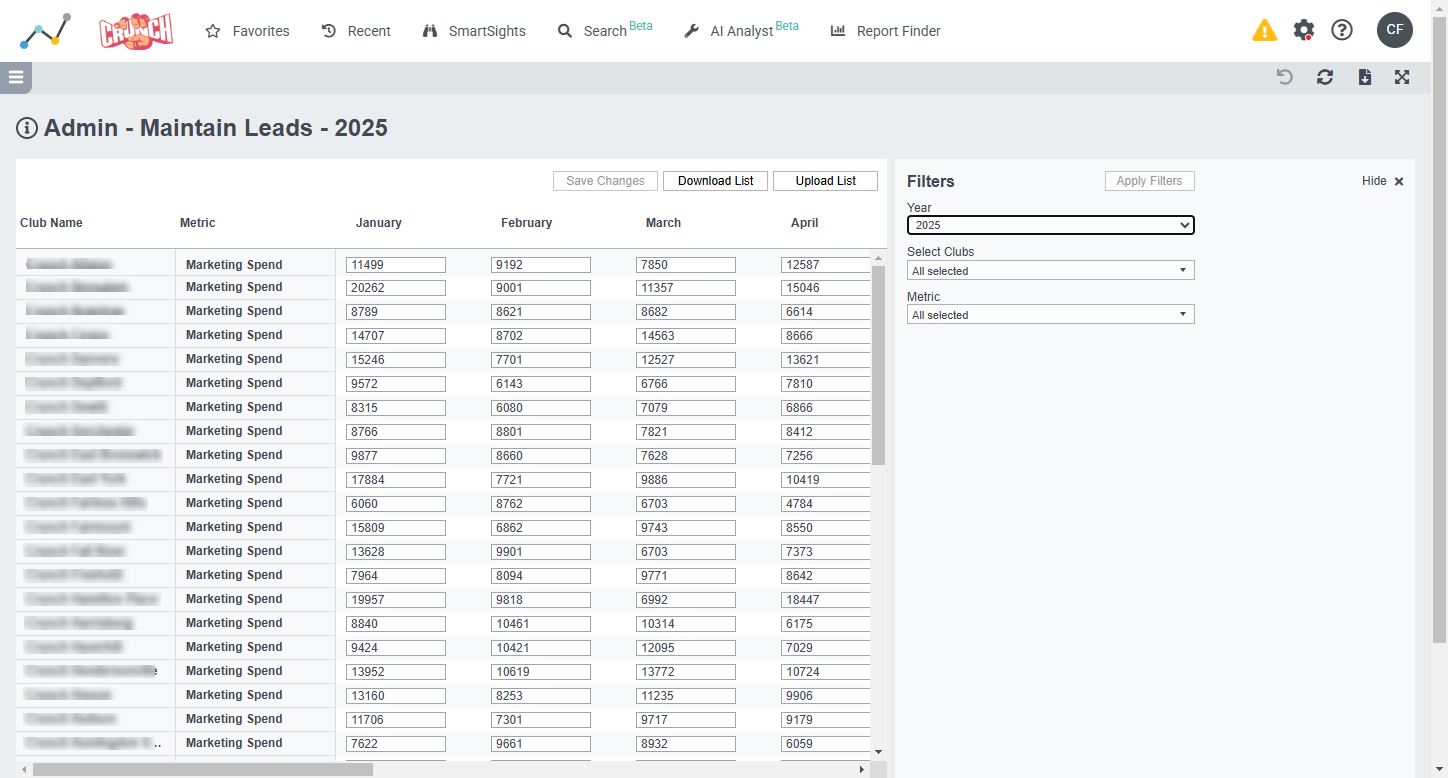
Using the Admin Page
The table lists your clubs and the Marketing Spend metric, with a column for each month from January through December. Scroll horizontally to see additional months.
Use the filters on the right to select the Year, Clubs, and Metric, then select Apply Filters. Confirm the year before entering or uploading values.
Entering Marketing Spend Manually
- Select the year and clubs you want to update, then select Apply Filters.
- Find the club’s Marketing Spend row.
- Enter the total marketing spend for each month you want to update. Use whole-number amounts; for example, enter 2500 for $2,500.
- Review the monthly values and select Save Changes.
- If prompted to overwrite existing values, select Continue to confirm.
Save your changes before changing filters or leaving the page.
Saved changes appear in reporting the following day, after the nightly data refresh.
Uploading Marketing Spend from Excel
Use the Excel option when updating several clubs or months at once.
- Select the correct Year, Clubs, and Marketing Spend metric, then select Apply Filters.
- Select Download List to download the Excel template.
- Open the file in Excel and update the monthly amounts on the Marketing Spend worksheet. Keep the template’s column headings, club information, and hidden ID columns unchanged.
- Review all monthly values in the rows you are uploading, including months you intend to keep unchanged. Enter whole-number amounts and use 0 for months with no spend rather than leaving cells blank.
- Save the file in .xlsx format.
- Return to the Admin page and select Upload List. Check the calendar year shown in the upload window.
- Select your file and choose Process File.
- Review the values loaded into the table, then select Save Changes. Confirm any overwrite prompt.
Processing the file does not finish saving your changes. You must select Save Changes to submit the uploaded values.
If the file contains errors, correct the listed issues in Excel and upload it again.
How Marketing Spend Is Used in Reports
The Lead Conversion dashboard uses your saved marketing spend to calculate:
- Cost per Lead: Marketing Spend ÷ New Leads.
- Cost per Acquisition: Marketing Spend ÷ New Members.
Monthly spend is divided evenly across the number of days in the month. When you select a partial-month reporting period, the dashboard includes the corresponding portion of that month’s spend.
For example, $3,000 entered for a 30-day month is allocated as $100 per day. A report covering the first 10 days includes $1,000 of marketing spend.
Enter the full month’s total in the Admin page; the dashboard handles the daily allocation.
Keeping Marketing Spend Up to Date
Review your marketing spend each month and update amounts as they become available. Missing or outdated spend can understate acquisition costs and make comparisons between clubs or periods misleading.
If you revise an earlier month, select the appropriate year, update the values, and save. The revised amounts will appear in reporting after the next nightly refresh.
New Member Goals used in Lead Conversion reporting are managed separately through Goals Administration.